Keyboard and mouse test
Press any key. Keys turn green once they register.
Tap a suspect key slowly, about 40 times, one deliberate press at a time. A human cannot release and press the same key this fast, so anything flagged here is the switch bouncing.
- No chatter found yet.
Held now
0
Most at once
0
Hold keys down together and keep adding more. W, A, S, D, Shift and Space is a realistic start.
- Left0
- Middle0
- Right0
- Back0
- Forward0
Click, right-click, middle-click and scroll inside this box.
Keys with a dashed outline, media keys and brightness keys are handled before the browser sees them, so they cannot light here. Nothing is stored or sent. Even so, never type a password into a keyboard tester.
Keyboard test for Mac
Press keys and watch them light. On a Mac several keys never reach the browser by design, so a dark key is not automatically a broken one — the list below says which ones to ignore.
Best keyboard for a laptop with dead keys
Affiliate links
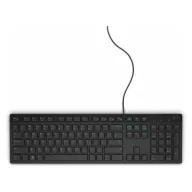
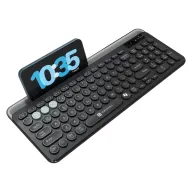
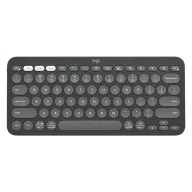
When laptop keys die or type twice, an external keyboard is the quickest fix and costs less than most keyboard repairs. The wired Dell KB216 is the cheapest dependable choice, the Portronics Bubble 3.0 adds wireless and a number pad, and the Logitech Pebble Keys 2 K380s is the slim one to carry with the laptop.
Budget · Under ₹700
Dell KB216 wired keyboard
The cheapest dependable fix: plug it in and type. Full size, with a number pad and media keys.
See it on Amazon IndiaMid-range · Under ₹1,000
Portronics Bubble 3.0 wireless keyboard
Wireless with a number pad, rechargeable, and able to switch between three devices.
See it on Amazon IndiaBest to carry · Under ₹3,500
Logitech Pebble Keys 2 K380s
Slim enough to carry in the laptop bag, and it pairs with three devices at once.
See it on Amazon India
Picked from Amazon.in best sellers rated 4 stars or more. Spolvero may earn a commission.
The short answer
To test a Mac keyboard, press each key and watch the on-screen layout. Letters, numbers, Command, Option, Control and Shift should all light. The top-row keys in their media mode, the brightness keys and Fn itself are handled by macOS before the browser sees them, so those staying dark is normal.
Four things worth knowing
Hold Fn to reach the real function keys
By default the top row sends media commands that macOS consumes. Hold Fn and those same keys send F1 to F12, which the browser does receive and will light.
Check both Command keys separately
The left and right Command keys are distinct switches. A shortcut that works with one hand and not the other is the clearest possible sign of a failing key.
Butterfly keyboards fail from debris
The 2016–2019 MacBook keyboards are notorious for a single key dying from one crumb. Compressed air at an angle, with the machine on its side, recovers more of these than any software step.
Rule out the software before the hardware
If keys light here but do nothing in one app, check System Settings → Keyboard → Keyboard Shortcuts for a conflict, and Accessibility for Slow Keys or Sticky Keys left switched on.
Nothing leaves your device
This test runs entirely in your browser. There is no upload, no recording and no server that could receive anything — close the tab and it is gone.
- No sign-up and no account
- Nothing recorded or stored
- Works with an ad blocker on
- Free, and staying free
Questions people ask
Anything we've missed?
Which Mac keys will not show up in this test?
The media functions on the top row, screen and keyboard brightness, Launchpad, and Fn itself. macOS intercepts them, so the browser never receives an event to draw.
How do I test an external keyboard on a Mac?
The same way — plug it in and press keys. If nothing registers at all, check System Settings → Keyboard, then try the keyboard on another machine before replacing it.
A key types the wrong character.
That is a layout problem rather than a hardware one. Check System Settings → Keyboard → Input Sources and confirm the selected layout matches the physical keyboard.
My MacBook keyboard repeats characters.
A worn or dirty switch sends several events from one press, and the counter beside each key here makes it obvious. On butterfly-era machines it is often dust, and sometimes a service issue.
Test it for something specific
Other device tests
- Live
Webcam Test
Check your camera in 3 seconds.
- Live
Online Mirror
A mirror with light, zoom and Ghost Pose.
- Live
Voice Recorder
Record, trim, download. Nothing uploaded.
- Live
Teleprompter
Read your script while you record.
- Live
Bingo Card Generator
Unique cards in a minute. Call it on screen.
- Live
Tambola Tickets
Proper 3×9 tickets, and a 1–90 caller.
- Live
Tambola Prize Calculator
Every dividend in rupees, adding up exactly.
- Live
Kitty Party Chits
Print folded chits, or draw one on screen.
- Live
Virtual Piano
Play, learn a song, record it.
- Live
Photo Jigsaw Puzzle
Any photo, 12 to 300 pieces.
- Live
Poster Maker
Any picture, wall-sized, on A4 or Letter.
- Live
Chart Maker
Any photo as a chart you can stitch.
- Live
Row Counter
Never lose your row again.
- Live
Photo Metadata Remover
See what your photos give away, then remove it.
- Live
Change Photo Date
Fix a wrong camera clock for a whole trip.
- Live
GST Calculator
Add or remove GST, with the CGST and SGST split.
- Live
Speech Time Calculator
How long your speech runs, or how many words to write.
- Live
Exam Time Calculator
Minutes per mark, and a finish-by time for each section.
- Live
Ring Sizer
Lay a ring on the screen, read five size systems.
- Live
Bangle Sizer
Lay a bangle on the screen, or measure your hand.
- Live
Online Ruler
A real-size ruler, once you match a card.
- Live
Mic Test
Hear yourself before they do.
- Live
Speaker Test
Left, right, and is it loud enough?
- Live
Mouse Test
Catch the double-click fault before you blame the software.
- Live
Dead Pixel Test
Check a new screen before the return window closes.
- Live
Laptop Check
Nine checks, fifteen minutes, one printed record.
- Live
Kundli Maker
Lagna, grahas, nakshatra and dasha.
- Live
Birth Chart Calculator
Sun, Moon and rising sign, with the wheel.
- Live
Today's Horoscope
Read from where the Moon is right now.
- Live
Today's Panchang
Your city's tithi, nakshatra and sunrise.

Find the problem now, not mid-sentence
Every one of these runs in the browser and checks one thing properly. Nothing is uploaded, nothing is recorded, and none of them need an account.
Guides worth reading
- Keyboard
Keyboard ghosting test: what ghosting and n-key rollover mean, and how to check yours
Why some key combinations drop a press, what 2KRO, 6KRO and NKRO mean, how many keys you actually need at once, and how to test your keyboard in a browser.
6 min read - Keyboard
Keyboard keys not working or typing twice: how to find out why
A dead key, a key that types twice and a key that repeats on its own are three different faults. How to tell them apart in two minutes, and what fixes each one.
6 min read
