Online mirror
The mirror opens full screen
The screen itself becomes the light. Nothing is recorded and nothing leaves this tab.
A full-screen mirror with a soft screen light, zoom, freeze and the true un-flipped view.
Capture a reference — now, or after a countdown — and it stays over the live picture as a translucent ghost you can line up with.
Your camera never leaves your screen. Snapshots save only to your device.How this works
Online mirror, with light, zoom and a true view
A mirror in your browser. Zoom in, freeze, light up your face, or match a pose with Ghost Pose. Free, no sign-up, and the video never leaves this tab.
Best ring light for video calls
Affiliate links
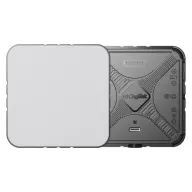
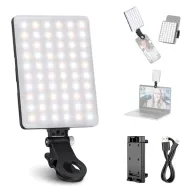
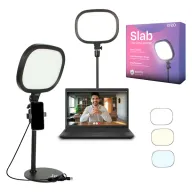
For video calls, a small light in front of your face fixes more than a new webcam. A small light like the Digitek LED-D11W is the cheapest fix, the Neewer NL-60AI clips to a laptop with adjustable warm-to-cool light, and the Kreo Slab on its own desk stand gives the most even light.
Budget · Under ₹1,500
Digitek LED-D11W mini video light
A pocket light with the widest colour range here: set it on a small tripod behind the laptop and match it to any room.
See it on Amazon IndiaBest for a laptop · Under ₹2,000
Neewer NL-60AI video conference light
Made for calls: a flat panel that clips to the laptop screen, dims in small steps and switches between warm and cool.
See it on Amazon IndiaBest on a desk · Under ₹2,000
Kreo Slab video light with desk stand
The brightest and most even of the three, on its own stand, so it can sit behind the screen at the right height.
See it on Amazon India
Picked from Amazon.in best sellers rated 4 stars or more. Spolvero may earn a commission.
The short answer
To use your webcam as a mirror, select Open mirror below and allow the camera. The mirror opens full screen. Tap Light to turn the screen edges into a soft light, Zoom to look closer, and View to switch between the mirrored image and the true view — the way other people see you. Ghost Pose freezes a reference frame and lays it over the live picture so you can match a pose.
Light, zoom, true view, Ghost Pose
Step 1: Open the mirror
Select Open mirror and choose Allow when the browser asks for the camera. The mirror opens full screen.
Step 2: Light your face
Tap Light to turn the edges of the screen into a soft light. Make it bigger or warmer, and turn your screen brightness up.
Step 3: Look closer
Use Zoom and drag to move around. Tap View to switch between the mirror, the true view, or both side by side.
Step 4: Match a pose
Tap Ghost, capture a reference now or after a 5 or 10 second countdown, then line yourself up with the translucent ghost.
Why you look different in photos
A mirror flips you left to right. Others see the un-flipped view, which is why photos can look a little off.
Every face is slightly asymmetric: one eyebrow sits higher, a smile pulls to one side, a parting falls one way. The mirror swaps all of it, and because that is the face you see every morning, it is the one that looks like you.
A camera does not flip anything. Photos, video calls and the people in front of you all see the true view — the same features on the other side. It is not less flattering; it is only less familiar.
Call apps show you a mirrored preview because moving feels natural that way, then send the true view to everyone else. Side by side in this mirror, you see both at once.
See the reference and yourself at once
Capture a frame, and it stays over the live picture as a translucent ghost. Move until you line up.
Yoga
Capture yourself in the pose from a class or a photo held up to the camera, then hold the ghost at 40% and line up hips, shoulders and hands.
Dance
Freeze each position of a phrase and check your lines against it. Use the 10 second countdown to get back into place before it captures.
Posture
Capture your posture sitting well at the start of the day. Later, bring the ghost back and see how far you have slumped from it.
Haircut symmetry
Turn on the grid for the centre line, then use freeze to compare each side of a fringe or beard line.
Product photos
Capture the framing of a shot you like, then place the next product in exactly the same spot for a set that matches.
Pair it with a timer
Hold each pose for a set time with the interval timer running in another tab.
Four things worth knowing
Turn your screen brightness up first
The light is only as bright as your screen. At full brightness, a laptop at arm's length lights a face noticeably in a dim room. In a bright room it will not add much, and that is fine — you do not need it there.
Use true view before a call or a photo
The mirrored image is the one you are used to, so it looks right to you. True view is what the camera and everyone else sees. Parting, a lopsided smile, a logo on your top: check them the way others will see them.
Zoom instead of leaning in
Leaning towards a laptop camera distorts your face and blocks the light. Stay where you are and zoom — drag to move around, double-click or double-tap to reset.
Freeze to look properly
It is hard to inspect your own face while looking at it. Freeze holds the frame so you can look at the back of your hair on a phone's rear camera, or check a detail without holding still.
If the camera didn't start
Open the one that matches what the mirror told you. If it detected the problem, that section is already open.
The browser blocked the camera
Your browser is refusing camera access for this site. The permission has to be reset from the address bar — a page cannot ask twice on its own.
Chrome, Edge, Brave
- 1Select the camera or padlock icon at the left of the address bar.
- 2Set Camera to Allow.
- 3Reload the page and run the test again.
Safari on Mac
- 1Open Safari → Settings → Websites → Camera.
- 2Set this site to Allow.
- 3Reload the page.
Firefox
- 1Select the padlock in the address bar.
- 2Next to 'Blocked temporarily' or Camera, select the × to clear the block.
- 3Reload the page and choose Allow.
iPhone and iPad
- 1Open Settings → Safari → Camera and set it to Ask or Allow.
- 2For Chrome, open Settings → Chrome → Camera and turn it on.
- 3Return to the page and reload.
Android
- 1Open the browser menu → Settings → Site settings → Camera.
- 2Allow the site, or clear it from the Blocked list.
- 3Reload the page.
No camera was found
The browser could not see any camera at all. That is a hardware or driver problem rather than a permission one.
Any device
- 1Check for a physical privacy shutter or a sliding lens cover.
- 2Many laptops have a camera kill switch — an F-key with a camera icon, or a switch on the side.
- 3Unplug and replug a USB camera, ideally into a port on the computer rather than a hub.
Windows
- 1Open Settings → Privacy & security → Camera and turn on 'Camera access' and 'Let apps access your camera'.
- 2Scroll down and make sure 'Let desktop apps access your camera' is on.
- 3Open Device Manager → Cameras. A yellow warning icon means a driver problem: right-click → Update driver.
macOS
- 1Open System Settings → Privacy & Security → Camera and turn on your browser.
- 2Quit and reopen the browser — macOS only applies the change on relaunch.
- 3For an external camera, try a different cable; some USB-C cables carry power only.
The camera is in use by another app
Something else already holds the camera. On Windows only one app can use it at a time, and background apps count.
Any device
- 1Fully quit Zoom, Teams, Meet tabs, Slack huddles, OBS, Camo and any camera utility — closing the window is often not enough.
- 2Check the system tray or menu bar for apps still running in the background.
- 3Reload this page and run the test again.
Windows
- 1Right-click the taskbar → Task Manager and end Zoom, Teams or OBS if they are still listed.
- 2A camera in use shows a white dot in the taskbar corner; hover it to see which app.
- 3If nothing is listed, sign out and back in — a crashed app can leave the camera locked.
macOS
- 1A green dot next to the camera means it is active. Check Control Centre to see which app is using it.
- 2Quit the app from the menu bar, or force quit it with Option-Command-Escape.
- 3Reload this page.
The preview is black, or I look dark and grainy
The camera works — the picture is the problem. This is the most common complaint and almost always lighting.
Fix the light
- 1Face your light source. A window or lamp in front of you beats any camera upgrade.
- 2Move a bright window out from behind you, or close the blind — a backlit shot makes your face a silhouette.
- 3A cheap desk lamp bounced off a wall gives softer light than pointing it at your face.
Fix the camera
- 1Clean the lens. A smear of finger grease is behind a surprising share of 'blurry webcam' complaints.
- 2Close other apps: a busy CPU makes the browser drop frames.
- 3If your camera has a utility app (Logitech, Elgato, Razer), check the exposure and auto-focus settings there.
Still black
- 1Switch camera in the picker above — a virtual camera left behind by OBS or a meeting app is often selected by default.
- 2Disable any 'virtual background' or camera-effects software.
- 3Restart the browser, then the machine.
Your camera never leaves your screen
A mirror that uploaded your face would be a strange mirror. This one cannot.
- The browser hands the camera stream to this page, which draws it on a canvas in your own tab. There is no upload code and no server that could receive it.
- Frozen frames and Ghost Pose references live in memory only. Close the mirror and they are gone.
- A snapshot is made on your device and saved to your downloads. Nothing is sent anywhere, and the page keeps no copy.
- Exit the mirror or close the tab and the camera stops — the indicator light goes out because the stream really has ended.
Questions people ask
Anything we've missed?
Is my video uploaded or recorded?
No. The camera stream is drawn onto a canvas inside your own browser tab. There is no upload code and no server that could receive it. Snapshots are made on your device and saved straight to your downloads — nothing is sent anywhere.
Why do I look different in photos than in the mirror?
A mirror flips you left to right, and that flipped face is the one you see every day. Photos, and everyone around you, see the un-flipped version. Faces are never quite symmetrical, so the version you are not used to looks slightly off. True view in this mirror shows you that version.
Does the ring light actually work?
It turns the edges of your screen into a large, even white or warm light. It helps most in a dim room, with the screen at full brightness and your face within about an arm's length. It will not outshine a bright window, and it is not as strong as a real ring light.
What is Ghost Pose?
Ghost Pose freezes a reference frame and lays it over the live picture at an opacity you choose, so you see yourself and the reference at once. Use it to match a yoga pose, a dance position, your posture from yesterday, or the framing of a product photo.
Where do snapshots go?
To your device only. Select Photo in the mirror controls and the picture is saved as a JPEG in your browser's downloads, exactly as it appears on screen, including the ghost if one is showing. Nothing is uploaded and nothing is kept by this page.
Does it work on a phone?
Yes, in Chrome and Safari on Android and iPhone. On a phone you can switch to the rear camera, which is useful for the back of your head with a second mirror. The rear camera opens in true view, because it is not mirrored in the first place.
Why is the webcam mirrored by default?
Because that is what a mirror does, and it is what feels natural when you move: raise your right hand and the hand on the right side of the screen moves. Video call apps show you a mirrored preview for the same reason, but send the un-flipped picture to everyone else.
Guides worth reading
- Camera
How to check your yoga pose at home with a webcam, no mirror wall needed
No studio mirror? Use your laptop camera: freeze a reference pose, lay it over the live picture as a ghost, and line up hips, shoulders and hands against it.
6 min read - Camera
Why you look different in photos than in the mirror
The mirror shows you flipped, and that is the face you know. Why the true view looks wrong, which one other people see, and how to check it before a call.
5 min read - Lighting
How to look good on Zoom using things you already own
You do not need a ring light. A lamp, a window and a stack of books will do more for how you look on a video call than any camera upgrade.
6 min read


Use the mirror for something specific
Before the call
Same idea, same privacy. Nothing you test leaves your device.
Built by Spolvero studio. We design apps and websites for other people too.
Need an app designed?