Voice recorder
0:00
The bar moves when the microphone hears you
- Space
- Record, or stop
- P
- Pause and resume
- Enter
- Play the trimmed selection
- R
- Start over
Recorded, trimmed and encoded on this device. There is no upload and no server copy — closing the tab discards it.How this works
Online voice recorder: record, trim, download MP3
Press record, say what you need to say, then trim the ends and download it. Your audio never leaves this tab.
Best USB mic for a podcast in India
Affiliate links
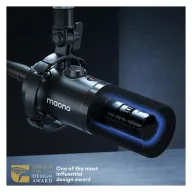
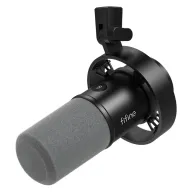
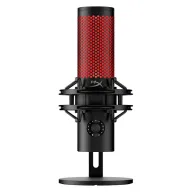
For a podcast recorded at home in India, a dynamic USB/XLR mic is the best choice, because it hears your voice and much less of the fan and traffic. The MAONO PD200X is the budget pick, the FIFINE K688 the sturdier mid-range one, and the HyperX QuadCast 2 suits a quiet room.
Budget · Under ₹5,000
MAONO PD200X USB/XLR dynamic mic
The most popular dynamic podcast mic in this price on Amazon.in, with software EQ and a single knob for gain and headphones.
See it on Amazon IndiaMid-range · Under ₹6,500
FIFINE AmpliTank K688 USB/XLR dynamic mic
An all-metal dynamic mic with a built-in shock mount and touch mute: the sturdier step up.
See it on Amazon IndiaBest for a quiet room · Under ₹9,000
HyperX QuadCast 2 USB mic
The pick for a quiet, furnished room, or for recording two people across a table with its two-way pattern.
See it on Amazon India
Picked from Amazon.in best sellers rated 4 stars or more. Spolvero may earn a commission.
The short answer
To record your voice online, press Record and allow the microphone when the browser asks. When you stop, drag the handles on the waveform to trim the silence off each end, then download it as MP3 to send or WAV to edit. Everything happens inside your browser — the recording is never uploaded, and closing the tab discards it.
Three steps to a finished file
Step 1: Press record
Allow the microphone when the browser asks. The level meter starts moving as soon as it hears you.
Step 2: Stop and trim
Drag the handles on the waveform to cut the dead air off either end, and play the selection back to check it.
Step 3: Clean it up and download
Leave the silence trim on, add a loudness target if the file is going to a platform, then choose MP3 to send it or WAV to edit it. The file is made on your device and saved straight to your downloads.
Four things worth knowing
Get the level right before the take
Watch the meter while you speak normally. Aim for the bar sitting in the middle most of the time. If it hits the top and turns amber you are clipping, which cannot be repaired afterwards — move back from the mic rather than turning it down in editing.
Record a few seconds of room first
Start recording, stay silent for three seconds, then begin. That gives you a clean handle to trim to, and it tells you how much background noise you are actually working with.
Wired beats wireless for recording
Bluetooth headsets switch to a low-quality call profile when the microphone is in use, which is why they sound thin. Wired earbuds with an inline mic usually beat both a Bluetooth headset and a laptop's built-in microphone.
Let it set the loudness rather than guessing
Podcast hosts want about −16 LUFS and Spotify and YouTube normalise to −14, which is why a file that sounded fine on your laptop can arrive quiet. Tick the loudness box before downloading and the tool measures the take with ITU-R BS.1770-4 — the same standard the platforms use — and applies one gain to the whole thing. Nothing is compressed, so if the target would clip it stops at −1 dBFS and tells you.
MP3 to send, WAV to edit
MP3 is small and plays everywhere, which is what you want for a voice note or an upload. WAV throws nothing away, so use it if the recording is going into an editor afterwards — you can always make an MP3 from a WAV, but not the reverse.
If recording did not start
Open the one that matches what the tool told you.
The browser blocked the camera
Your browser is refusing camera access for this site. The permission has to be reset from the address bar — a page cannot ask twice on its own.
Chrome, Edge, Brave
- 1Select the camera or padlock icon at the left of the address bar.
- 2Set Camera to Allow.
- 3Reload the page and run the test again.
Safari on Mac
- 1Open Safari → Settings → Websites → Camera.
- 2Set this site to Allow.
- 3Reload the page.
Firefox
- 1Select the padlock in the address bar.
- 2Next to 'Blocked temporarily' or Camera, select the × to clear the block.
- 3Reload the page and choose Allow.
iPhone and iPad
- 1Open Settings → Safari → Camera and set it to Ask or Allow.
- 2For Chrome, open Settings → Chrome → Camera and turn it on.
- 3Return to the page and reload.
Android
- 1Open the browser menu → Settings → Site settings → Camera.
- 2Allow the site, or clear it from the Blocked list.
- 3Reload the page.
No camera was found
The browser could not see any camera at all. That is a hardware or driver problem rather than a permission one.
Any device
- 1Check for a physical privacy shutter or a sliding lens cover.
- 2Many laptops have a camera kill switch — an F-key with a camera icon, or a switch on the side.
- 3Unplug and replug a USB camera, ideally into a port on the computer rather than a hub.
Windows
- 1Open Settings → Privacy & security → Camera and turn on 'Camera access' and 'Let apps access your camera'.
- 2Scroll down and make sure 'Let desktop apps access your camera' is on.
- 3Open Device Manager → Cameras. A yellow warning icon means a driver problem: right-click → Update driver.
macOS
- 1Open System Settings → Privacy & Security → Camera and turn on your browser.
- 2Quit and reopen the browser — macOS only applies the change on relaunch.
- 3For an external camera, try a different cable; some USB-C cables carry power only.
The camera is in use by another app
Something else already holds the camera. On Windows only one app can use it at a time, and background apps count.
Any device
- 1Fully quit Zoom, Teams, Meet tabs, Slack huddles, OBS, Camo and any camera utility — closing the window is often not enough.
- 2Check the system tray or menu bar for apps still running in the background.
- 3Reload this page and run the test again.
Windows
- 1Right-click the taskbar → Task Manager and end Zoom, Teams or OBS if they are still listed.
- 2A camera in use shows a white dot in the taskbar corner; hover it to see which app.
- 3If nothing is listed, sign out and back in — a crashed app can leave the camera locked.
macOS
- 1A green dot next to the camera means it is active. Check Control Centre to see which app is using it.
- 2Quit the app from the menu bar, or force quit it with Option-Command-Escape.
- 3Reload this page.
The preview is black, or I look dark and grainy
The camera works — the picture is the problem. This is the most common complaint and almost always lighting.
Fix the light
- 1Face your light source. A window or lamp in front of you beats any camera upgrade.
- 2Move a bright window out from behind you, or close the blind — a backlit shot makes your face a silhouette.
- 3A cheap desk lamp bounced off a wall gives softer light than pointing it at your face.
Fix the camera
- 1Clean the lens. A smear of finger grease is behind a surprising share of 'blurry webcam' complaints.
- 2Close other apps: a busy CPU makes the browser drop frames.
- 3If your camera has a utility app (Logitech, Elgato, Razer), check the exposure and auto-focus settings there.
Still black
- 1Switch camera in the picker above — a virtual camera left behind by OBS or a meeting app is often selected by default.
- 2Disable any 'virtual background' or camera-effects software.
- 3Restart the browser, then the machine.
What to download, for what
Pick by what you are going to do with the file rather than by the codec.
| Format | Use it for | Size | Plays on | Quality |
|---|---|---|---|---|
| MP3 | Voice notes, sending, uploads | ~1 MB per minute at 128 kbps | Everywhere, including old devices | Fine for speech |
| WAV | Editing, archiving a master | ~10 MB per minute | Every editor; too large to send | Lossless |
| M4A / AAC | Apple devices, video editing | ~1 MB per minute | Apple, Android, most browsers | Slightly better than MP3 at the same size |
| OPUS | What WhatsApp voice notes actually are | ~0.5 MB per minute | Modern browsers; awkward elsewhere | Excellent for speech, poor support |
| M4R | iPhone ringtones only | 30 seconds maximum | iPhone | AAC in a renamed container |
If it is going somewhere that normalises loudness
Every major platform turns loud uploads down to a target, so mastering louder than the target gains nothing.
- Most podcast hosts−16 LUFS
- Spotify−14 LUFS
- YouTube−14 LUFS
- Apple Podcasts−16 LUFS

Most of what sounds amateur is the room, not the mic
Sitting closer and recording somewhere with soft furnishings does more for a voice recording than any microphone under a hundred pounds. The level meter here tells you when you have it right.
Your voice stays on your device
Most online recorders are honest about this now, so it is worth being precise about what it means here: there is no upload code in this page at all. The recording is captured, drawn, trimmed and encoded by your own browser, and the file is written straight to your downloads. The badge says 0 bytes of audio rather than 0 bytes because, like most sites, this one counts visits — that analytics call carries no audio, and you can see for yourself in your browser's network tab that nothing else leaves while you record.
- No upload, no server copy, no account
- Closing the tab discards the recording
- The MP3 encoder runs on your machine, not ours
- Ads never load or refresh while you are recording
- Site analytics count the visit, and never see the audio
Questions people ask
Anything we've missed?
Is my recording uploaded anywhere?
No. The microphone stream is captured by your browser, drawn as a waveform, trimmed and encoded entirely on your device. There is no upload code and no server that could receive audio. Close the tab and the recording is gone.
Is there a time limit?
The practical limit is your device's memory, because the audio is held in the tab rather than streamed to a server. Recordings of several minutes are comfortable on any modern phone or laptop; very long sessions are better handled by a dedicated app.
Why does the MP3 take a moment to appear?
Because it is being encoded on your machine rather than on a server. The encoder is only downloaded when you first ask for an MP3, which keeps the page fast for everyone who does not. WAV export is instant, since it needs no encoding.
What does the silence trim actually cut?
Only the quiet at the very start and the very end, and it leaves 150 milliseconds of room so the first word is never clipped. It never removes pauses from the middle — deciding which of your pauses were deliberate is not something a threshold can do well, and a recording with its breathing cut out sounds worse, not better.
Is the loudness reading a real LUFS measurement?
Yes. It is ITU-R BS.1770-4 integrated loudness: the K-weighting filter, 400 millisecond blocks at 75 percent overlap, and both the absolute gate at −70 LUFS and the relative gate 10 LU below the ungated mean. It is not a peak meter with a LUFS label on it. Takes shorter than 400 milliseconds cannot be measured under the standard, and the tool says so rather than inventing a number.
Can I read from a script while I record?
Yes. Press Read from a script above the timer, paste your text, and it scrolls from the top when you press Record — at a steady pace, or following your voice and waiting when you pause. The script is saved on your device. Following your voice uses your browser's speech recognition, and the panel asks first if that means the browser sending your speech to its maker's service; steady speed never listens. To record video as well, the teleprompter page has the same panel over a camera preview.
Can I record a phone call or a meeting?
This records your microphone, so it captures your side of a call and whatever the microphone picks up from the room. It cannot capture audio from inside another app. Recording other people has legal requirements that vary by country and state — check what applies where you are, and ask first.
The recording is silent. What happened?
Usually the wrong input. Use the microphone picker to choose the device by name rather than leaving it on Default, and watch the meter move while you speak. If the meter is flat, the browser is listening to a device that is not hearing you.
Does it work on an iPhone?
Yes, in Safari and Chrome on iOS. Recording needs a tap to begin, which is a browser rule rather than our choice, and the page has to stay in the foreground while recording.
Can I use this offline?
Recording, trimming and WAV export work once the page has loaded. MP3 export needs the encoder, which downloads the first time you use it — after that it is cached.
What bitrate is the MP3?
128 kbps, which is roughly a megabyte a minute and more than enough for speech. It is the setting most voice notes and podcast uploads use.
Guides worth reading
- Video
How many words for a 60-second video script, and how to write one that reads well
At 140 to 160 words a minute, a 60-second video is about 140 to 160 words. Word counts for 15 to 180 seconds, and how to write a script that sounds spoken.
6 min read - Audio
MP3, WAV, M4A or OPUS: which audio format to pick, and when
A plain comparison of the formats you actually meet — what each is for, how big it gets, where it plays, and the one rule that avoids most mistakes.
6 min read - Audio
How to record a decent voice-over with just a laptop mic
Seven changes that improve a laptop-mic recording more than new hardware does — room, distance, levels and the one setting that quietly ruins takes.
7 min read


