Webcam test
Your camera preview appears here
Nothing is recorded and nothing is uploaded. The video stays in this browser tab.
Free · No sign-up
Webcam test
One tap, one browser prompt, and you get a score with anything worth fixing.
- Works on Chrome, Safari, Firefox and Edge
- Front and rear cameras on phones
- Revoke access any time from the address bar
Readiness score
Measuring…
- Camera workingChecking…
Whether the browser can open your camera at all.
- ResolutionChecking…
The size of the picture your camera is sending right now.
- Frame rateChecking…
Frames per second, measured from the live stream.
- LightingChecking…
How bright and how even the light on your face is.
Technical details
Nothing is uploaded or recorded — the video stays in this tab.How this works
Test your webcam on Windows 11
Windows has two layers between your camera and the browser — system privacy settings and the driver — and either can block it silently. Run the test below; if it fails, the fixes are in order of how often they work.
Best webcam under ₹3,000
Affiliate links
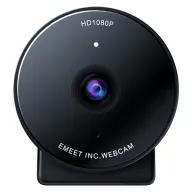
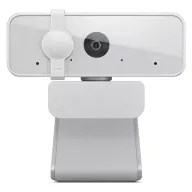
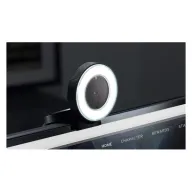
Under ₹3,000, the Lenovo 300 FHD is the best all-round 1080p webcam for calls, with a wide 95° lens and two mics. The eMeet C950 costs less and keeps the frame tight on you, and the Razer Kiyo is the one to buy for a dark room because it has its own ring light.
Budget · Under ₹2,000
eMeet C950 1080p webcam
The least you need to spend for 1080p, with a privacy cover and a tight frame that shows you rather than the room.
See it on Amazon IndiaMid-range · Under ₹2,500
Lenovo 300 FHD webcam
The all-rounder: a wide lens, two mics, a long cable and a tripod thread, from a laptop maker.
See it on Amazon IndiaBest for dark rooms · Under ₹3,000
Razer Kiyo webcam with ring light
A webcam and a light in one: the ring around the lens lights your face evenly, which is what a dark room needs most.
See it on Amazon India
Picked from Amazon.in best sellers rated 4 stars or more. Spolvero may earn a commission.
The short answer
On Windows 11, open this page and select Test my camera. If no camera is found, check Settings → Privacy & security → Camera and turn on both 'Let apps access your camera' and 'Let desktop apps access your camera', then look for a physical privacy switch or lens cover on the laptop.
Three steps, about three seconds
Step 1: Open the test
Open the Spolvero webcam test in the browser you use for calls.
Step 2: Allow the camera
Select Test my camera and choose Allow when the browser asks for camera access.
Step 3: Read the result
Your live preview appears with a readiness score, plus resolution, frame rate and lighting checks and a fix for anything marked amber or red.
Four things worth doing before you join
Only one app at a time
Windows generally hands the camera to one app at a time. Zoom or Teams sitting in the system tray is the single most common reason a browser camera test shows nothing.
Look for the taskbar camera dot
When the camera is live, Windows 11 shows a small indicator in the taskbar corner. Hovering it names the app that holds the camera, which saves guessing.
Privacy switches are physical
Many Lenovo, HP and Dell laptops have a sliding lens cover or an F-key with a camera icon that cuts the camera at the hardware level. No software fix will get past one.
Roll a driver back before updating it
If the camera broke after a Windows update, Device Manager → Cameras → right-click → Properties → Driver → Roll Back Driver fixes it more often than searching for a newer one.
If the camera didn't start
Open the one that matches what the test told you — these are the steps for Windows. If the test detected the problem, that section is already open.
The browser blocked the camera
Windows puts two layers above the browser, and either can refuse the camera without the browser saying which one did it.
- 1Select the camera icon in the address bar, set Camera to Allow, then reload.
- 2Open Settings → Privacy & security → Camera. Turn on 'Camera access' and 'Let apps access your camera', then confirm your browser is listed and switched on.
- 3Scroll down to 'Let desktop apps access your camera'. Browsers do not need it; Zoom and Teams do, which is why a camera can work here and not in them.
No camera was found
On Windows this is a hardware switch, a privacy setting or a driver, in that order of likelihood.
- 1Look for a sliding lens cover, or an F-key with a camera icon. Many Lenovo, HP and Dell laptops cut the camera at hardware level and no software fix gets past one.
- 2Open Device Manager and expand Cameras. A yellow warning triangle means a driver problem.
- 3If the camera broke shortly after a Windows update, right-click → Properties → Driver → Roll Back Driver. That works more often than searching for a newer one.
The camera is in use by another app
Windows generally hands the camera to one application at a time, and an app sitting in the system tray still counts as running.
- 1Hover the camera indicator in the taskbar corner. Windows names the app holding the camera, which is usually the entire diagnosis.
- 2Expand the hidden tray icons near the clock, right-click the app and choose Quit or Exit. If it still holds the camera, end it in Task Manager.
- 3If nothing is listed at all, a crashed app may have left an orphaned process holding it. Signing out and back in clears that; a restart certainly does.
The preview is black, or I look dark and grainy
If the Windows Camera app shows a picture and the browser does not, the camera is fine and something between the two is not.
- 1Open the Windows Camera app to confirm the hardware works, then come back here. A failure in both points below the browser.
- 2Switch camera in the picker above. A virtual camera left behind by OBS, Camo or NVIDIA Broadcast is often selected by default and produces nothing.
- 3If the picture is dark rather than black, that is light: face a window or a lamp, and move a bright window out from behind you.
What each app actually needs
Resolution and frame rate each app sends, from their own published requirements, checked September 2026.
| App | Minimum | Looks good at | Worth knowing |
|---|---|---|---|
| Zoom | 640×360 at 30fps | 1280×720 at 30fps | Zoom sends 360p by default; turn on HD in Settings → Video. |
| Microsoft Teams | 640×360 at 30fps | 1280×720 at 30fps | Teams caps most calls at 720p regardless of your camera. |
| Google Meet | 640×360 at 30fps | 1280×720 at 30fps | 1080p needs a paid Workspace plan and a 1080p camera. |
| Twitch / OBS | 1280×720 at 30fps | 1920×1080 at 60fps | 60fps only helps if your upload and encoder can keep up. |
Above 1080p at 30fps there is nothing more to gain for a meeting: mainstream call apps will not send it.

Two minutes now beats an apology later
Most people discover a camera problem in the first thirty seconds of a meeting, in front of everyone. Checking beforehand costs nothing and takes about as long as opening the meeting link.
How this tool handles your camera
A camera test that uploads your face would defeat the point. This one cannot.
- Your browser opens the camera and hands the stream to this page. The page shows it in a video element and samples it on a canvas — both are in your own tab.
- There is no upload code, no recording and no server that could receive video. Nothing is stored in your browser either.
- Permission is per-site and per-browser, and you can withdraw it any time from the address bar.
- Close the tab and the camera stops. The indicator light goes out because the stream really has ended.
Questions people ask
Anything we've missed?
How do I test my webcam on Windows 11 without installing anything?
Use this page — it runs in Edge, Chrome and Firefox and needs no download. Windows also ships a Camera app, but it shows the picture without reporting resolution, frame rate or lighting.
Windows Camera app works but the browser doesn't.
That is a browser permission, not a hardware fault. Select the camera icon in the address bar and set Camera to Allow, then reload.
The browser works but Zoom or Teams doesn't.
Turn on 'Let desktop apps access your camera' in Settings → Privacy & security → Camera. Browsers are covered by the app setting above it; desktop apps need this separate one.
My webcam shows a black screen on Windows.
Check the lens cover and the camera kill switch first, then close every other app that might hold the camera, then roll back the camera driver in Device Manager.
Guides worth reading
- Troubleshooting
"Camera is being used by another application": how to find the app and get it back
Another program is holding your camera. Find which one on Windows or Mac, quit it fully, then check the camera is free in a browser webcam test.
5 min read - Chrome
Camera not working in Chrome? 7 fixes, in the order that works
Chrome can't find your camera, shows a black screen, or says it's blocked. Here are the seven fixes, ordered by how often each one is the answer.
6 min read - Audio
Headphones only working on one side: find the fault in two minutes
Sound in one ear only is a plug, a cable, a port, a setting or the headphones. Two swaps and a left-right test tell you which, before you buy anything new.
5 min read


Test your camera for something specific
More device tests, and what to record with
Same idea, same privacy. Nothing you test or record leaves your device.
- Live
Online Mirror
A mirror with light, zoom and Ghost Pose.
- Live
Mic Test
Hear yourself before they do.
- Live
Speaker Test
Left, right, and is it loud enough?
- Live
Keyboard Test
Test every key, and find out why it double-types.
- Live
Mouse Test
Catch the double-click fault before you blame the software.
- Live
Dead Pixel Test
Check a new screen before the return window closes.
- Live
Laptop Check
Nine checks, fifteen minutes, one printed record.
- Live
Voice Recorder
Record, trim, download. Nothing uploaded.
- Live
Teleprompter
Read your script while you record.
Built by Spolvero studio. We design apps and websites for other people too.
Need an app designed?