Microphone test
Speak for five seconds, get a plain answer
Two seconds of quiet, one sentence, then a verdict and playback. Under ten seconds in all.
Choose “Allow” in your browser
The prompt usually appears at the top left of the window. On a phone it appears at the bottom.
Step 1 of 2
Stay quiet for 2
Measuring your room's background noise.
Step 2 of 2 · 5s
“Hi, can you hear me clearly? I'm checking my microphone before the call.”
Read it aloud at your normal volume.
Your recording
Hear yourself the way the other end will.
Held in this tab only. Discarded when you test again or leave.
Free · No sign-up
Ready when you are
One tap, one browser prompt, and you get a verdict on volume, background noise and distortion.
- Works on Chrome, Safari, Firefox and Edge
- Headsets, USB mics, AirPods and laptop mics
- Revoke access any time from the address bar
Testing
Listening…
Follow the steps on the left.
Verdict
—
- Volume—
How loud your voice reaches the browser.
- Background noise—
Measured in the two seconds of silence.
- Distortion—
Whether your loudest words hit the ceiling.
Details
Nothing is uploaded. The five-second clip stays in this tab for playback and is discarded when you leave.
AirPods microphone test
AirPods sound excellent until the microphone is used, and then everything goes thin. That is Bluetooth switching profiles, not a fault. This test runs through the same path, so what you see here is what a call gets.
Best mic under ₹2,000 for Zoom calls
Affiliate links
For calls in a noisy room, a dynamic USB mic such as the TONOR TD310 is the best pick under ₹2,000, because it hears what is close to it and little of the room. A clip-on lavalier like the BOYA BY-M1 is the cheapest real step up from a laptop mic, and the TONOR TC-777 condenser suits a quiet room.
Budget · Under ₹1,000
BOYA BY-M1 clip-on lavalier mic
The cheapest way to get the mic close to your mouth. It clips to your collar, so your voice stays loud whichever way you turn, and its long cable reaches the laptop from anywhere at the desk.
See it on Amazon IndiaMid-range · Under ₹2,000
TONOR TC-777 USB condenser mic
A desk mic in a complete kit. It is the most-rated USB mic in this price on Amazon.in and is best in a quiet room, placed close.
See it on Amazon IndiaBest for noisy rooms · Under ₹2,000
TONOR TD310 USB dynamic mic
The pick for a room with a fan, traffic or family in it: a dynamic capsule hears mostly what is right in front of it.
See it on Amazon India
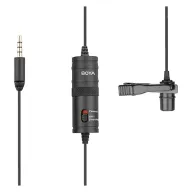
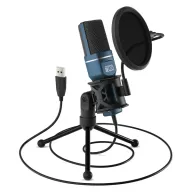
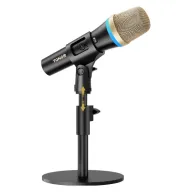
Picked from Amazon.in best sellers rated 4 stars or more. Spolvero may earn a commission.
The short answer
To test an AirPods microphone, start the test and speak normally — the meter should peak between −18 dB and −6 dB. Expect the playback quality to drop as soon as the mic activates: Bluetooth switches from a high-bitrate music codec to a narrowband call profile, and every wireless headset does this.
Fix what the test found
Open the one that matches your verdict. Windows 11 and current macOS.
The browser blocked the microphone
Your browser is refusing microphone access for this site. The permission has to be reset from the address bar — a page cannot ask twice on its own.
Chrome, Edge, Brave
- 1Select the padlock or site-settings icon at the left of the address bar.
- 2Set Microphone to Allow.
- 3Reload the page and run the test again.
Safari on Mac
- 1Open Safari → Settings → Websites → Microphone.
- 2Set this site to Allow.
- 3Reload the page.
Firefox
- 1Select the padlock in the address bar.
- 2Next to 'Blocked temporarily' or Microphone, select the × to clear the block.
- 3Reload the page and choose Allow.
iPhone and iPad
- 1Open Settings → Apps → Safari → Microphone and set it to Ask or Allow.
- 2For Chrome, open Settings → Apps → Chrome and turn Microphone on.
- 3Return to the page and reload.
Android
- 1Open the browser menu → Settings → Site settings → Microphone.
- 2Allow the site, or clear it from the Blocked list.
- 3Reload the page.
No microphone was found
The browser could not see any microphone at all. That is a connection, driver or system setting rather than a permission.
Any device
- 1Unplug and replug a USB or 3.5mm headset. Into the computer directly, not a hub or a monitor's port.
- 2A single 3.5mm jack on a laptop needs a four-ring (TRRS) plug to carry the mic; a three-ring headphone plug has no mic wire.
- 3For Bluetooth, disconnect and reconnect the headset, then choose its hands-free device in the picker.
Windows 11
- 1Open Settings → Privacy & security → Microphone and turn on 'Microphone access' and 'Let apps access your microphone'.
- 2Open Settings → System → Sound → Input and check the device is listed and not disabled.
- 3Open Device Manager → Audio inputs and outputs. A warning icon means a driver problem: right-click → Update driver.
macOS
- 1Open System Settings → Privacy & Security → Microphone and turn on your browser.
- 2Quit and reopen the browser — macOS applies the change on relaunch.
- 3Open System Settings → Sound → Input and check the mic is listed there.
The microphone is in use or will not start
Something else holds the microphone, or the operating system is blocking the browser. Many USB and Bluetooth headsets allow one app at a time.
Any device
- 1Fully quit Zoom, Teams, Discord, Meet tabs, OBS and any headset utility — closing the window is often not enough.
- 2Check the system tray or menu bar for apps still running in the background.
- 3Reload this page and run the test again.
Windows 11
- 1Open Settings → System → Sound → your microphone → Advanced, and untick 'Allow applications to take exclusive control of this device'.
- 2Check Settings → Privacy & security → Microphone for which apps used it recently.
- 3If nothing is listed, sign out and back in — a crashed app can leave the mic locked.
macOS
- 1An orange dot in the menu bar means the mic is active. Open Control Centre to see which app.
- 2Quit that app, or force quit it with Option-Command-Escape.
- 3Reload this page.
The test says I'm too quiet
Your voice reaches the browser, but not loudly enough. Distance and the input volume setting cause almost all of it.
Distance
- 1Bring a headset boom to about a hand's width from the corner of your mouth.
- 2A laptop mic hears you best from an arm's length, facing the screen — not turned away to a second monitor.
- 3Check the mic is not covered: a case, a sleeve, or a finger over the pinhole on a phone.
Windows 11
- 1Open Settings → System → Sound → your microphone and raise Input volume to around 80.
- 2Test again here and watch the peaks land in the green.
- 3If the volume keeps dropping, an app is changing it: turn off 'automatically adjust microphone' in Zoom or Discord.
macOS
- 1Open System Settings → Sound → Input and raise Input volume.
- 2Watch the input level bar there while you speak.
- 3Some USB mics have their own gain dial — turn that up before the system slider.
The test says there's background noise
The mic hears your room almost as clearly as your voice. The cheapest fix is always distance: the closer the mic is to your mouth, the less the room matters.
The room
- 1Turn off fans, air conditioning and anything with a hum — a laptop fan counts.
- 2Close the window and the door. Soft furnishing cuts echo; bare walls add it.
- 3Move away from the TV or other voices, even into the next room.
The mic
- 1Use a headset rather than the laptop's built-in mic, which sits next to the fan and the keyboard.
- 2Move the mic closer to your mouth and lower the input volume a little, so your voice rises above the room.
- 3A laptop mic picks up typing: use push-to-talk if you type while you talk.
Your call app
- 1Turn on noise suppression: Zoom → Settings → Audio → Background noise suppression; Teams → Settings → Devices → Noise suppression; Discord → Voice & Video → Noise Suppression.
- 2Chrome and Edge apply their own suppression too; this test measures with it on, as a call does.
- 3Suppression removes steady hum well but struggles with voices and TV.
The test says I'm distorting
Your loudest words hit the ceiling of what the mic can send, and the tops get cut off. It sounds crackly or harsh, and turning it down on their end does not fix it.
Quick fix
- 1Move back from the mic — a few centimetres makes a large difference.
- 2Speak across the mic rather than straight into it, which also cuts popping on P and B.
- 3Test again and watch the meter stay out of the red.
Windows 11
- 1Open Settings → System → Sound → your microphone and lower Input volume.
- 2Look for 'Microphone boost' under Advanced or the driver's control panel, and set it to 0 dB.
- 3Test again here.
macOS and USB mics
- 1Open System Settings → Sound → Input and lower Input volume.
- 2On a USB mic with a gain dial, turn the dial down first — the system slider cannot undo distortion that happens inside the mic.
- 3Test again here.
What your result means
The common ways a mic sounds wrong, what usually causes each, and the fix.
| You sound | Likely cause | Fix |
|---|---|---|
| Too quiet | Mic too far away, or input volume set low | Move closer and raise input volume in system sound settings |
| Distorting or crackly | Input too loud, the signal hits its ceiling (clipping) | Move back, lower input volume, turn off mic boost |
| Background noise | A fan, traffic or voices close to your voice level | Mic closer to your mouth, turn off the source, noise suppression on |
| Muffled | Bluetooth call profile, or a covered mic | Use a wired headset, or clear what covers the mic |
| Robotic or cutting out | A poor connection, or heavy noise suppression | Check your internet, set suppression to Low |
| Echo for others | Your speakers feed back into your mic | Use headphones, or lower the speaker volume |
| Nothing at all | Wrong mic selected, muted, or input at zero | Pick the mic by name, check the mute switch and input volume |
Four things worth knowing
The profile switch is the whole story
With playback only, Bluetooth uses a high-bitrate codec. Open a microphone and the link drops to a call profile of roughly 16kHz. Music going dull the moment you join a call is expected behaviour, not a defect.
Wired earbuds beat any AirPod for calls
A cheap wired headset carries full-bandwidth audio in both directions at once. Where call quality matters more than convenience, this is the largest single improvement available.
Work out which AirPod is doing the talking
With both in, either one can be the microphone. A blocked mesh on that side halves your level. Try each one alone and compare the meter.
Clean the mesh before replacing anything
The microphone port is a small mesh at the bottom of the stem and it clogs with pocket lint. A soft dry brush often restores a level that had been sliding for months.
Nothing leaves your device
This test runs entirely in your browser. The five seconds you read are held in this tab so you can play them back, then discarded — there is no upload and no server that could receive anything.
- No sign-up and no account
- Nothing uploaded or saved to disk
- Works with an ad blocker on
- Free, and staying free
Questions people ask
Anything we've missed?
Why do my AirPods sound worse on calls?
Bluetooth cannot carry high-quality playback and a microphone at the same time. When the mic opens, the link drops to a narrowband call profile. Every wireless headset behaves this way.
Can I use AirPods as a microphone on Windows?
Yes, though support is inconsistent. Windows exposes them as two devices — a stereo playback one and a hands-free one — and only the hands-free device carries the microphone.
One AirPod is much quieter than the other.
Try each one alone on this test. A clear difference points at a blocked microphone mesh on that side, which careful cleaning usually fixes.
Is the iPhone's own microphone better?
In a quiet room, usually yes — the phone's microphones carry more bandwidth than a Bluetooth call profile. AirPods win in noisy places and when you need your hands free.
Test it for something specific
Other device tests
- Live
Webcam Test
Check your camera in 3 seconds.
- Live
Online Mirror
A mirror with light, zoom and Ghost Pose.
- Live
Voice Recorder
Record, trim, download. Nothing uploaded.
- Live
Teleprompter
Read your script while you record.
- Live
Bingo Card Generator
Unique cards in a minute. Call it on screen.
- Live
Tambola Tickets
Proper 3×9 tickets, and a 1–90 caller.
- Live
Tambola Prize Calculator
Every dividend in rupees, adding up exactly.
- Live
Kitty Party Chits
Print folded chits, or draw one on screen.
- Live
Virtual Piano
Play, learn a song, record it.
- Live
Photo Jigsaw Puzzle
Any photo, 12 to 300 pieces.
- Live
Poster Maker
Any picture, wall-sized, on A4 or Letter.
- Live
Chart Maker
Any photo as a chart you can stitch.
- Live
Row Counter
Never lose your row again.
- Live
Photo Metadata Remover
See what your photos give away, then remove it.
- Live
Change Photo Date
Fix a wrong camera clock for a whole trip.
- Live
GST Calculator
Add or remove GST, with the CGST and SGST split.
- Live
Speech Time Calculator
How long your speech runs, or how many words to write.
- Live
Exam Time Calculator
Minutes per mark, and a finish-by time for each section.
- Live
Ring Sizer
Lay a ring on the screen, read five size systems.
- Live
Bangle Sizer
Lay a bangle on the screen, or measure your hand.
- Live
Online Ruler
A real-size ruler, once you match a card.
- Live
Speaker Test
Left, right, and is it loud enough?
- Live
Keyboard Test
Test every key, and find out why it double-types.
- Live
Mouse Test
Catch the double-click fault before you blame the software.
- Live
Dead Pixel Test
Check a new screen before the return window closes.
- Live
Laptop Check
Nine checks, fifteen minutes, one printed record.
- Live
Kundli Maker
Lagna, grahas, nakshatra and dasha.
- Live
Birth Chart Calculator
Sun, Moon and rising sign, with the wheel.
- Live
Today's Horoscope
Read from where the Moon is right now.
- Live
Today's Panchang
Your city's tithi, nakshatra and sunrise.

Find the problem now, not mid-sentence
Every one of these runs in the browser and checks one thing properly. Nothing is uploaded, nothing is recorded, and none of them need an account.
Guides worth reading
- Troubleshooting
"Camera is being used by another application": how to find the app and get it back
Another program is holding your camera. Find which one on Windows or Mac, quit it fully, then check the camera is free in a browser webcam test.
5 min read - Chrome
Camera not working in Chrome? 7 fixes, in the order that works
Chrome can't find your camera, shows a black screen, or says it's blocked. Here are the seven fixes, ordered by how often each one is the answer.
6 min read - Audio
How to record a decent voice-over with just a laptop mic
Seven changes that improve a laptop-mic recording more than new hardware does — room, distance, levels and the one setting that quietly ruins takes.
7 min read


